Connecting a monitor or projector to a Mac extends the computer’s display capabilities, allowing users to either mirror their screen or expand their workspace for greater efficiency and flexibility. This is especially useful for presentations, where a projector enables content to be shared clearly with an audience, and for productivity tasks, where a second monitor provides additional screen real estate for multitasking—such as editing documents while referencing materials side by side. It also enhances visual experiences for creative work, video playback, and detailed analysis by offering larger or higher-resolution displays than the Mac’s built-in screen.
A video dongle is a compact adapter that allows a computer—such as a Mac—to connect to an external display like a monitor, TV, or projector when the built-in ports don’t match the display’s input. It typically plugs into a port such as USB-C or Thunderbolt on the computer and converts the signal to a standard video format like HDMI, DisplayPort, or VGA. This enables compatibility between modern devices and a wide range of display hardware, making it easy to present content, extend a desktop workspace, or mirror a screen without needing specialized cables or permanent hardware changes.
On MacBook Pro models from 2016 onward and MacBook Air models from 2018 onward, the primary video output is through USB-C ports with Thunderbolt 3 or Thunderbolt 4 support. These ports carry a DisplayPort video signal (DisplayPort over USB-C), which means the Mac doesn’t have a dedicated HDMI or VGA port built in—instead, it outputs video digitally through the USB-C/Thunderbolt interface.
This setup allows the Mac to connect directly to modern displays that accept USB-C or DisplayPort input, or to use adapters (video dongles) to convert the signal to HDMI, VGA, or other formats. In practice, it’s a flexible, high-bandwidth solution that supports high resolutions, multiple external displays (depending on the model), and audio/video transmission through a single cable.
Earlier Mac laptops (pre-2016) used a mix of dedicated video ports rather than USB-C. Most commonly, Apple relied on versions of Mini DisplayPort and later Thunderbolt 1 or Thunderbolt 2, which used the same physical Mini DisplayPort connector but added higher bandwidth and expanded capabilities. These ports carried a DisplayPort video signal, allowing connection to external monitors either directly (with Mini DisplayPort cables) or through adapters to HDMI, DVI, or VGA.
Some older models—especially mid-2000s MacBook and MacBook Pro systems—also included Mini-DVI or Micro-DVI ports, which required specific adapters for external displays. Across these generations, the general approach was similar: a compact proprietary or semi-standard port on the Mac, paired with a dongle or adapter to match the input type of the display or projector.
Yes—Mac desktops generally use the same types of video outputs as their laptop counterparts, but often with a bit more flexibility depending on the model and generation. Older desktops like the iMac (pre-2017) or Mac mini (pre-2018) commonly featured Mini DisplayPort or Thunderbolt 1/2, which carried a DisplayPort signal and required adapters for HDMI, DVI, or VGA. Many of these models also included a native HDMI port, especially on Mac mini units, making direct connection to TVs and projectors easier.
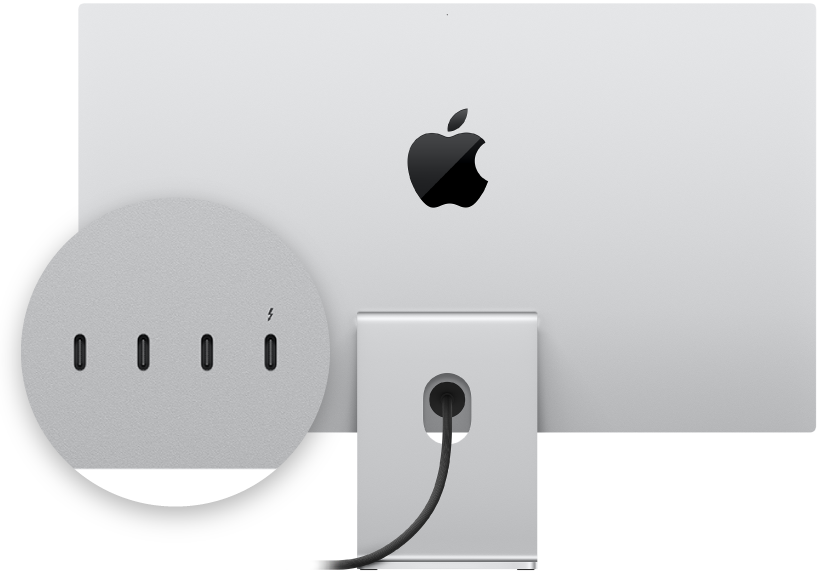
Newer desktops—such as the iMac (2017 and later), Mac mini (2018 and later), and Mac Studio—primarily use USB-C ports with Thunderbolt 3 or 4, just like modern Mac laptops. These ports output video via DisplayPort over USB-C and can connect directly to compatible displays or through adapters to HDMI and other formats. Many current Mac desktops also still include a built-in HDMI port, giving users both modern and legacy display options without needing a dongle.
The number of external displays you can connect to a Mac is determined by the specific model and its graphics hardware, not by how many adapters or “dongles” you use. A dongle (such as USB-C to HDMI or DisplayPort) simply converts the video signal to match a monitor’s input—it does not increase the Mac’s ability to drive additional displays.
On Apple Silicon Macs, display support varies by chip. Base models like the M1, M2, and M3 typically support one external display. Pro versions such as the M1 Pro, M2 Pro, and M3 Pro generally support up to two external displays, while Max variants (like M1 Max or M2 Max) can support multiple high-resolution displays, often four or more depending on configuration. Even if you connect more adapters, macOS will only activate as many displays as the chip supports.
Intel-based Macs vary more widely depending on model and graphics hardware. Many MacBook Air models from 2018 to 2020 support a single external display, while most MacBook Pro models from the same era support two external displays through Thunderbolt 3. Higher-end 16-inch MacBook Pro models can support up to four external displays depending on their GPU configuration. Desktop Macs like the Mac mini and iMac typically support one to several external displays, depending on generation and port layout.
While you can physically connect multiple dongles to a Mac, doing so does not bypass these hardware limits. macOS will only recognize and activate displays up to the maximum supported by the system. Any additional connected monitors beyond that limit will remain inactive.
If more displays are needed than the Mac natively supports, users can turn to DisplayLink-based adapters or docking stations. These solutions use USB data processing instead of direct GPU video output, allowing additional monitors beyond Apple’s built-in limitations, though they require installing supporting software and may have different performance characteristics.
Yes—but only with the right type of active conversion hardware, and there are important limitations in both directions.
Analog video signals (such as VGA, composite, or S-Video) and digital video signals (such as HDMI, DisplayPort, or USB-C/Thunderbolt) are fundamentally different. Analog is a continuous electrical signal, while digital is packet-based data. Because of this, you cannot simply use a passive cable or basic adapter to convert between them.
To go from analog → digital, you need an active converter. For example, a VGA-to-HDMI adapter must actively sample the analog signal, convert it into digital data, and often scale or process the image. These devices typically require external power (often via USB) because the conversion is not passive.
To go from digital → analog, you also need an active converter. For instance, an HDMI-to-VGA adapter takes the digital HDMI signal and converts it into an analog format that older monitors or projectors can understand. Again, this requires internal processing and sometimes external power.
Functionally, both directions are possible, but quality and compatibility depend heavily on the converter. Resolution support, refresh rates, and audio handling (analog outputs typically do not carry audio) vary widely. In general, digital-to-digital connections are always preferred when available because they preserve signal quality and reduce complexity.
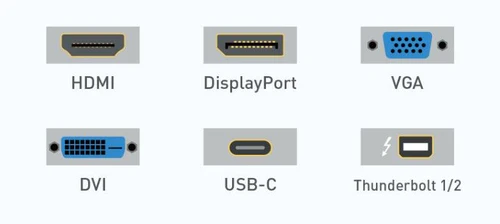
Note: mini Display port shares port style with Thunderbolt ½, however a mini display port will not work with a Thunderbolt Display. Thunderbolt port is capable of driving a mini Display display.
Thunderbolt ¾ shares port with certain USB-C ports, some thunderbolt or USB-C displays are not compatible with older USB-C 2.0 ports.
Denver/Boulder Mac Repair can help take the confusion out of choosing the right video connections for your Mac by translating Apple’s evolving port standards into practical, real-world setups. Whether you’re working with older Mini DisplayPort or Thunderbolt 2 Macs, newer USB-C/Thunderbolt 3 and 4 systems, or trying to connect to HDMI, DisplayPort, or even legacy VGA projectors, they can identify exactly what adapters, dongles, or docks you need for your specific model and display goals. This includes understanding limitations like resolution support, refresh rates, and how many external displays your Mac can reliably drive. With hands-on experience across generations of Mac hardware, Boulder Mac Repair can help ensure you don’t waste money on incompatible cables and instead get a clean, stable, and fully supported video setup for home, business, or presentation environments.