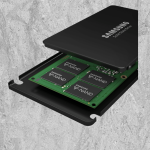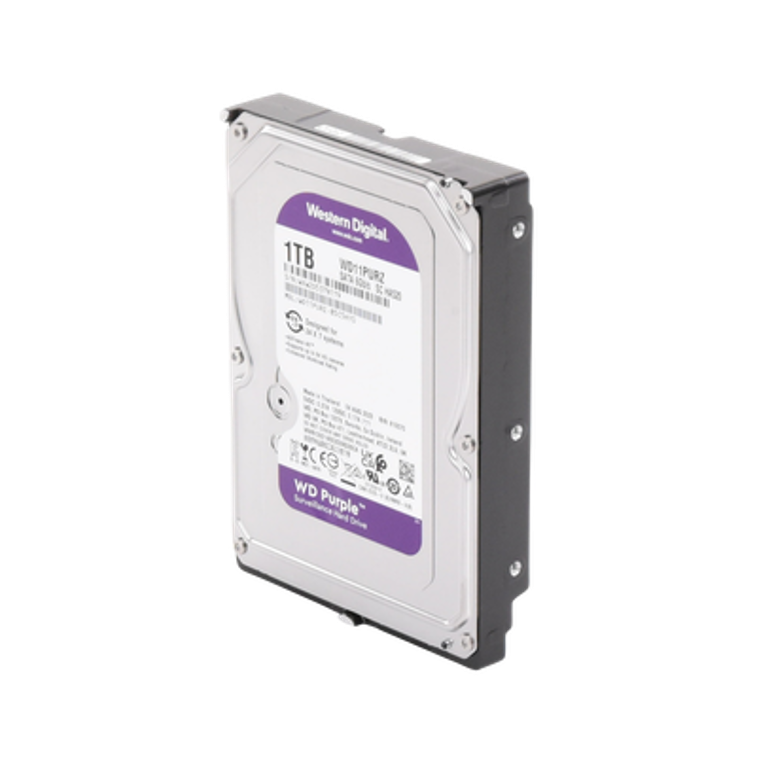
Computer storage is one of the most important components of any computer because it determines how much data, software, and media can be kept on the device. As operating systems, applications, photos, videos, and documents continue to grow in size, adequate storage ensures users can work efficiently without constantly deleting files to free up space. Insufficient storage can lead to reduced performance, difficulty installing updates, and limited ability to save important information. Whether for personal use, business operations, creative projects, or education, having enough storage provides flexibility, improves productivity, and helps ensure valuable data remains readily accessible when needed.
Computer storage is measured in units that increase exponentially in size. One kilobyte (KB) is approximately 1,024 bytes and can store a short text document or a few paragraphs of plain text. One megabyte (MB) is about 1,024 KB and is large enough for a high-quality photo or a small song file. One gigabyte (GB) equals approximately 1,024 MB and can hold thousands of photos, several hours of music, or multiple applications. One terabyte (TB) is about 1,024 GB and can store hundreds of thousands of photos, hundreds of hours of video, or years of documents and data. Each step up represents roughly 1,024 times more storage capacity than the previous unit, making the difference between KB and TB enormous.
Choosing the right storage capacity for your Mac depends on how you use your computer and how long you plan to keep it. Users who primarily browse the web, check email, stream media, and work with documents can often get by with 256 GB of storage. Those who store large photo libraries, music collections, or numerous applications may benefit from 512 GB. Creative professionals working with photography, video editing, audio production, or large design files should consider 1 TB or more to ensure adequate space for projects and future growth.
Whether you can increase the storage in your Mac depends on the model. Many older Intel-based Macs allow the internal hard drive or solid-state drive (SSD) to be upgraded or replaced with a larger drive. However, most modern Macs, including Apple Silicon models with M1, M2, M3, and newer processors, have storage chips permanently integrated into the logic board and cannot be upgraded after purchase. Before purchasing a Mac, it is important to choose a storage capacity that will meet your long-term needs, especially if the model does not support internal storage upgrades.
If your Mac’s internal storage cannot be expanded, you can still add capacity by using external USB-C or Thunderbolt drives, network-attached storage (NAS), or cloud storage services. External drives provide additional storage for a Mac by connecting through USB, USB-C, Thunderbolt, or other compatible ports. Once connected, macOS typically recognizes the drive automatically, allowing it to appear in Finder like an internal drive. External drives can be used to store documents, photos, videos, music, backups, and even applications. Many users rely on external drives to expand storage capacity, archive older files, or create backups using Time Machine. Solid-state external drives (SSDs) offer faster performance and greater durability, while traditional hard disk drives (HDDs) generally provide more storage for a lower cost. Depending on the speed of the connection and the drive itself, an external drive can be nearly as responsive as internal storage for many everyday tasks.