
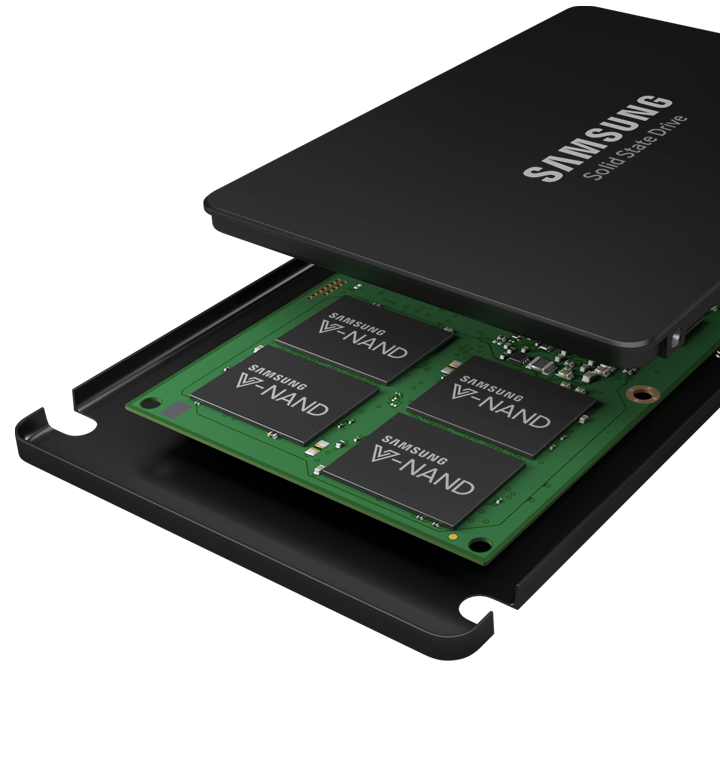
Random Access Memory (RAM) and solid-state drives (SSDs) are both forms of electronic storage used in modern computers, and they share the common goal of temporarily or permanently holding digital data for fast access by the system. Both rely on semiconductor-based flash or integrated circuit technology rather than moving mechanical parts, which makes them significantly faster, more durable, and more energy-efficient than traditional hard disk drives.
Each plays a role in improving system responsiveness by reducing the time it takes for the CPU to retrieve and write information. While Random Access Memory is volatile and designed for ultra-fast, short-term data access while programs are running, and Solid-State Drive is non-volatile and retains data even when power is off, both technologies overlap in their use of solid-state circuitry and their shared purpose of enabling rapid data handling in computing systems.
Random Access Memory (RAM) acts as the computer’s short-term working memory. It temporarily stores the data and instructions that the CPU is actively using or is likely to need immediately, allowing programs to run quickly and smoothly without constantly retrieving information from slower storage like an SSD or hard drive.
When you open an application, load a file, or switch between tasks, that data is loaded into RAM so the processor can access it at very high speed. However, RAM is volatile, meaning it loses everything stored in it when the computer is powered off or restarted. In practical terms, more RAM allows a computer to handle more applications at once and improves multitasking performance, while insufficient RAM can cause slowdowns as the system begins relying on slower storage to compensate.
Neither RAM nor storage is universally “more important”—they serve different core functions, and the right priority depends on how the computer is used.
Random Access Memory determines how many tasks your system can actively handle at once and how smoothly they run. If RAM is too limited, the computer slows down during multitasking because it has to offload active work to slower storage. This becomes the main bottleneck for things like having many browser tabs open, running creative apps, or using virtual machines.
Solid-State Drive (storage) determines how much data you can keep on the device—apps, files, photos, and the operating system itself. It also affects load times: faster SSDs open apps and files more quickly, but once something is in RAM, storage speed matters less for that task.
In practical terms:
On modern Macs especially, both matter because macOS uses storage as “swap” when RAM fills up—so a fast SSD can partially mask low RAM, but not fully replace it. In most real-world use, a balanced system (enough RAM + fast SSD) is what actually determines smooth performance.
It’s critical—on a Mac, RAM and storage are not just performance choices, they’re long-term usability constraints because neither is meaningfully upgradeable after purchase on modern Apple Silicon systems.
Random Access Memory determines how well the Mac handles active workloads. If you under-spec RAM, you don’t just lose performance—you force the system into “memory pressure” behavior where macOS compresses memory and spills active data onto disk. That fallback mechanism uses Solid-State Drive as swap space. While SSDs are fast, they are still orders of magnitude slower than RAM, so sustained swapping produces noticeable lag, beachballs, and reduced responsiveness under multitasking or heavy applications.
Storage capacity is equally strategic, but in a different way. macOS requires free disk space for virtual memory, caches, updates, and application scratch data. If storage is too tight, the system can become unstable or sluggish even if RAM is sufficient. Additionally, modern apps (especially creative suites, Xcode, Adobe tools, and large media libraries) expand rapidly in size, and internal SSDs cannot be upgraded later on current Macs.
Practically speaking, the decision matters because it defines the usable lifespan of the machine. A Mac with adequate RAM will stay responsive under future macOS updates and heavier apps, while insufficient RAM will “age” the system early. Similarly, insufficient storage creates a hard ceiling where the device becomes inconvenient or unusable without external drives or constant cleanup.
Rule of thumb:
If either is underspecified, you don’t just get inconvenience—you effectively shorten the useful life of the Mac.
A useful way to think about this is: RAM governs active workload size and responsiveness, while storage governs how much you can keep and how much working space macOS has to operate comfortably. In real-world Mac usage, you usually “feel” the wrong choice quickly—but in different ways.
You need more Random Access Memory when you’re pushing simultaneous workload complexity, not file size.
Typical scenarios:
Symptoms of not enough RAM:
You need more Solid-State Drive when you’re constrained by capacity or sustained file growth, not performance headroom.
Typical scenarios:
Symptoms of not enough storage:
This is common in “professional workload” machines.
You need both if you:
Why both matter together:


