November 17, 2025

What are the Thunderbolt ports on my Mac?

There are different style ports for Thunderbolt depending on the generation of Mac.

What are the Thunderbolt ports on my Mac?

Thunderbolt port is a high-speed, all-in-one connector developed by Intel and Apple. Think of it as the Swiss Army Knife of computer ports—it does a lot more than just move data. It combines datavideo, and power into one tiny, connector.


TABLE OF CONTENTS


What is Thunderbolt 1/2?

Thunderbolt 1 and Thunderbolt 2 are the first two generations of Thunderbolt technology, and while they share the same physical connector, they differ in performance and capability. Both versions use the Mini DisplayPort–shaped connector rather than the newer USB-C style found on later Thunderbolt generations. Thunderbolt 1 was introduced in 2011 and offered data transfer speeds of up to 10 Gbps, allowing Macs of that era to connect high-speed storage, external displays, and other peripherals through a single compact port. It supported daisy-chaining, meaning multiple Thunderbolt devices could be linked together using only one port on the Mac. Thunderbolt 1 appeared on many Macs released between 2011 and 2013, including certain MacBook Pro, MacBook Air, iMac, and Mac mini models.

In 2013, Thunderbolt 2 arrived as an upgraded version that still used the same Mini DisplayPort-shaped connector but improved overall performance. The biggest change was that Thunderbolt 2 doubled the maximum speed to 20 Gbps, making it significantly better for tasks such as editing large video files or running 4K external displays. It also handled its bandwidth more efficiently, which helped provide smoother performance when several demanding devices were connected at once. You could still daisy-chain up to six devices just like with Thunderbolt 1, but the connection was more capable and better suited for modern workflows of the time. Thunderbolt 2 was included on many Macs released from 2013 through 2015, including the 2013 “trashcan” Mac Pro, updated iMacs, MacBook Pros, and Mac minis.

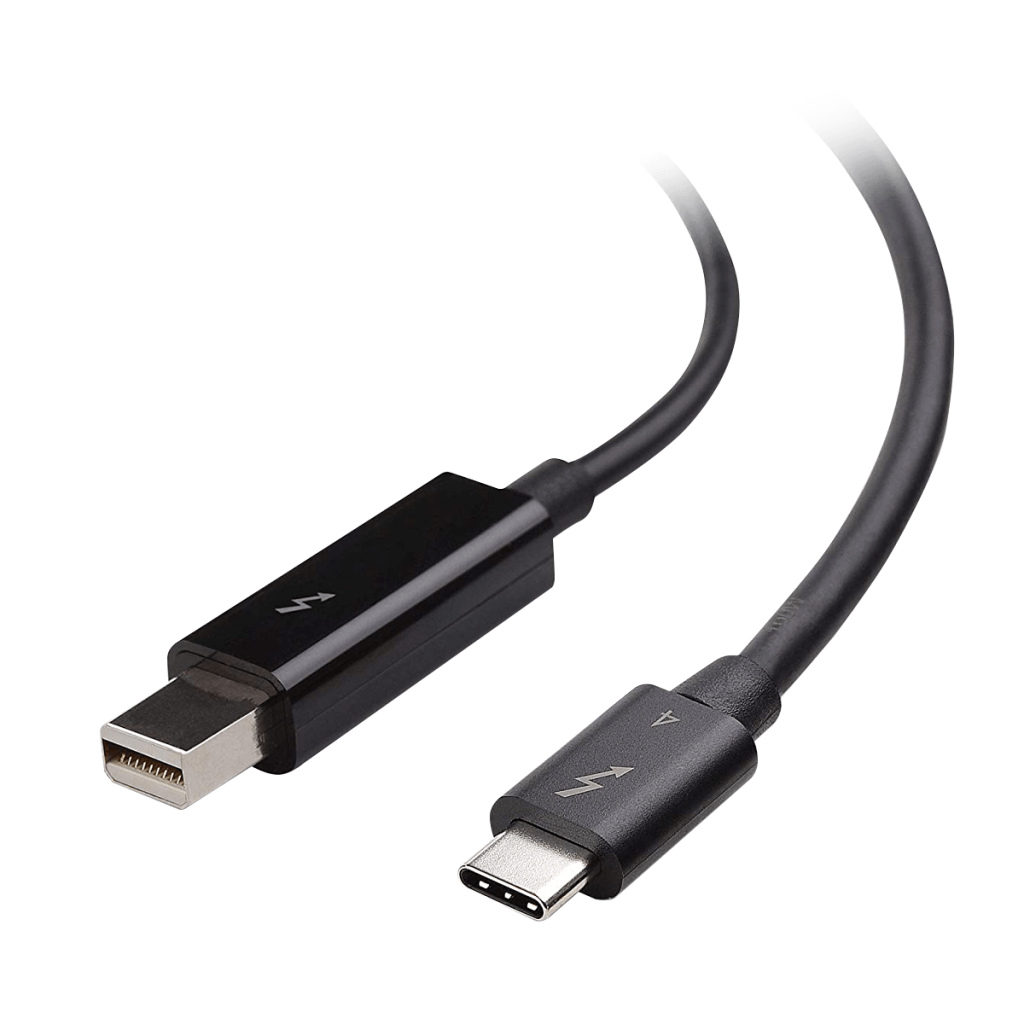
Even though Thunderbolt 1 and 2 look identical to Mini DisplayPort—they use the same physical shape—it’s important to know they are not exactly the same thing. Thunderbolt ports can function as Mini DisplayPort outputs for connecting displays, but basic Mini DisplayPort ports cannot use Thunderbolt accessories. The easiest way to tell whether a port is Thunderbolt is to look for the small lightning bolt symbol printed next to it. Despite being older technologies now, Thunderbolt 1 and 2 played a major role in bringing high-speed, all-in-one connectivity to the Mac lineup long before USB-C and Thunderbolt 3 unified the standard.

Here is a complete list of every Mac model that shipped with Thunderbolt 1. These all use the Mini DisplayPort-shaped Thunderbolt port and have 10 Gbps speeds.

🖥️ Macs With Thunderbolt 1 (2011–2013)

MacBook Pro

2011 MacBook Pro (Thunderbolt 1)

  • MacBook Pro 13-inch (Early 2011)
  • MacBook Pro 15-inch (Early 2011)
  • MacBook Pro 17-inch (Early 2011)
  • MacBook Pro 13-inch (Late 2011)
  • MacBook Pro 15-inch (Late 2011)
  • MacBook Pro 17-inch (Late 2011)

2012 Non-Retina MacBook Pro (Thunderbolt 1)

  • MacBook Pro 13-inch (Mid 2012 — non-Retina)
  • MacBook Pro 15-inch (Mid 2012 — non-Retina)

Retina Models With Thunderbolt 1

  • MacBook Pro 15-inch Retina (Mid 2012)
  • MacBook Pro 13-inch Retina (Late 2012)
  • MacBook Pro 15-inch Retina (Early 2013)
  • MacBook Pro 13-inch Retina (Early 2013)

MacBook Air

2011 MacBook Air (Thunderbolt 1)

  • MacBook Air 11-inch (Mid 2011)
  • MacBook Air 13-inch (Mid 2011)

2012 MacBook Air (Thunderbolt 1)

  • MacBook Air 11-inch (Mid 2012)
  • MacBook Air 13-inch (Mid 2012)

2013 MacBook Air (Thunderbolt 1)

  • MacBook Air 11-inch (Mid 2013)
  • MacBook Air 13-inch (Mid 2013)

2014 MacBook Air (Thunderbolt 1)

  • MacBook Air 11-inch (Early 2014)
  • MacBook Air 13-inch (Early 2014)

iMac

2011 iMac (Thunderbolt 1)

  • iMac 21.5-inch (Mid 2011)
  • iMac 27-inch (Mid 2011)

2012 iMac (Thunderbolt 1)

  • iMac 21.5-inch (Late 2012)
  • iMac 27-inch (Late 2012)

2013 iMac (last models with TB1)

  • iMac 21.5-inch (Early 2013)
  • iMac 21.5-inch (Late 2013)
  • iMac 27-inch (Late 2013 — has two Thunderbolt 1 ports)

Mac Mini

2011 Mac mini (Thunderbolt 1)

  • Mac mini (Mid 2011)

2012 Mac mini (Thunderbolt 1)

  • Mac mini (Late 2012)

Mac Pro

No Mac Pro models shipped with Thunderbolt 1, however it could be added via PCI card.

Here is a complete list of every Mac model that shipped with Thunderbolt 2.
All Thunderbolt 2 ports use the Mini DisplayPort-shaped connector, support 20 Gbps, and appeared on Macs from Late 2013 through 2015 (plus the 2013 Mac Pro).

🖥️ Macs With Thunderbolt 2 (2013–2015)

MacBook Pro (Retina)

13-inch Models

  • MacBook Pro 13-inch (Late 2013, Retina)
  • MacBook Pro 13-inch (Mid 2014, Retina)
  • MacBook Pro 13-inch (Early 2015, Retina)

15-inch Models

  • MacBook Pro 15-inch (Late 2013, Retina)
  • MacBook Pro 15-inch (Mid 2014, Retina)
  • MacBook Pro 15-inch (Mid 2015, Retina)

All Thunderbolt 2 MacBook Pros have two Thunderbolt 2 ports.

MacBook Air

2015 MacBook Air

  • MacBook Air 11-inch (Early 2015)
  • MacBook Air 13-inch (Early 2015)

2017 MacBook Air

  • MacBook Air 13-inch (2017)

iMac

Late 2013 iMac

  • iMac 27-inch (Late 2013) — two Thunderbolt 2 ports

2014 iMac

  • iMac 21.5-inch (Mid 2014) — still Thunderbolt 1
  • iMac 27-inch 5K Retina (Late 2014) — two Thunderbolt 2 ports

2015 iMac

  • iMac 21.5-inch (Late 2015, 1080p) — Thunderbolt 2
  • iMac 21.5-inch (Late 2015, 4K Retina) — Thunderbolt 2
  • iMac 27-inch (Late 2015, 5K Retina) — Thunderbolt 2 (two ports)

Mac Mini

2014 Mac mini

  • Mac mini (Late 2014) — two Thunderbolt 2 ports

(Only the 2014 model—no other Mac mini had Thunderbolt 2.)

Mac Pro

2013 Mac Pro (“Trashcan”)

  • Mac Pro (Late 2013) — six Thunderbolt 2 ports

This is the only Mac Pro that ever included Thunderbolt 2.

What is Thunderbolt 3/4?

Thunderbolt 3 and Thunderbolt 4 are the modern generations of the Thunderbolt standard, and they represent a significant evolution from earlier versions. Unlike Thunderbolt 1 and 2, which used the Mini DisplayPort connector, both Thunderbolt 3 and 4 use the USB-C connector. This small, reversible port is now standard on most modern Macs and allows a single port to handle data transfer, video output, and power delivery all at once. Although Thunderbolt 3 and 4 ports look identical to standard USB-C, they offer much higher performance and versatility, making them a central feature of Apple’s current Mac lineup.

Thunderbolt 3 was introduced in 2015 and supports data transfer speeds of up to 40 Gbps. It can drive up to two 4K displays or one 5K display, making it ideal for creative professionals working with high-resolution content. Thunderbolt 3 is backward compatible with USB-C devices and supports charging via USB Power Delivery, as well as daisy-chaining up to six Thunderbolt devices. Macs such as the 2016–2020 MacBook Pro and MacBook Air, some iMac models with USB-C, and the 2018 Mac mini feature Thunderbolt 3 ports.

Thunderbolt 4, released in 2020, builds on the foundation of Thunderbolt 3 by guaranteeing consistent performance across all ports. While it also offers 40 Gbps data transfer, Thunderbolt 4 ensures minimum PCIe speeds for storage devices, supports dual 4K displays or a single 8K display, and improves security and compatibility with USB4. It is included on Macs such as the 2021 and later MacBook Pro and MacBook Air, the 24-inch iMac with M1/M2 chips, Mac Studio, and Mac mini with M2 or M3 chips.

One important point to note is that while Thunderbolt 3 and 4 use the same USB-C connector, not all USB-C ports are Thunderbolt. To identify a Thunderbolt port, look for the lightning bolt symbol printed next to the connector. Both Thunderbolt 3 and 4 can handle high-speed external drives, multiple high-resolution displays, external GPUs (on Intel Macs), charging, and daisy-chaining devices, making them extremely versatile. In essence, Thunderbolt 4 is a perfected version of Thunderbolt 3, offering more consistent performance and compatibility across modern Macs.

Here is a comprehensive list of Mac models with Thunderbolt 3 ports. Thunderbolt 3 uses the USB-C connector and offers up to 40 Gbps of data transfer, along with video output and charging capabilities. These ports appeared on Macs starting in 2016.

🖥️ Macs With Thunderbolt 3 (2016–2020)

MacBook Pro (USB-C/Thunderbolt 3)

13-inch

  • MacBook Pro 13-inch (Late 2016, 2 Thunderbolt 3 ports)
  • MacBook Pro 13-inch (Late 2016, 4 Thunderbolt 3 ports)
  • MacBook Pro 13-inch (2017, 2 Thunderbolt 3 ports)
  • MacBook Pro 13-inch (2017, 4 Thunderbolt 3 ports)
  • MacBook Pro 13-inch (2018–2019)
  • MacBook Pro 13-inch (2020, Intel-based)

15-inch

  • MacBook Pro 15-inch (Late 2016–2019, all Retina)

16-inch

  • MacBook Pro 16-inch (2019, Intel-based)

All these MacBook Pro models have 2 or 4 Thunderbolt 3 ports depending on the configuration.

MacBook Air

  • MacBook Air 13-inch (2018–2020, Retina, Intel-based)
    • Two Thunderbolt 3/USB-C ports

iMac

21.5-inch

  • iMac 21.5-inch (2017, Intel-based)
  • iMac 21.5-inch 4K Retina (2017)

27-inch

  • iMac 27-inch 5K Retina (2017, 2019)
  • iMac 27-inch 5K Retina (2019, Intel-based)

All iMacs above have two Thunderbolt 3 ports.

iMac Pro

  • iMac Pro (2017) — Eight Thunderbolt 3 ports

Mac mini

  • Mac mini (2018) — Four Thunderbolt 3 ports

Mac Pro

  • Mac Pro (2019) — Eight Thunderbolt 3 ports

🖥️ Macs With Thunderbolt 4 (2021–Present)

MacBook Pro

14-inch

  • MacBook Pro 14-inch (2021, M1 Pro / M1 Max) — Three Thunderbolt 4 ports
  • MacBook Pro 14-inch (2023, M2 Pro / M2 Max) — Three Thunderbolt 4 ports

16-inch

  • MacBook Pro 16-inch (2021, M1 Pro / M1 Max) — Three Thunderbolt 4 ports
  • MacBook Pro 16-inch (2023, M2 Pro / M2 Max) — Three Thunderbolt 4 ports

MacBook Air

  • MacBook Air 13-inch (2022, M2) — Two Thunderbolt 4 ports
  • MacBook Air 13-inch (2020, M1) — Two Thunderbolt / USB 4 ports (TB4 compatible via USB4 standard)

iMac

24-inch

  • iMac 24-inch (2021, M1) — Two Thunderbolt 4 ports

Mac mini

  • Mac mini (2023, M2 / M2 Pro) — Two or four Thunderbolt 4 ports depending on the model

Mac Studio

  • Mac Studio (2022, M1 Max / M1 Ultra) — Four Thunderbolt 4 ports

Mac Pro

  • Mac Pro (2023, M2 Ultra) — Eight Thunderbolt 4 ports

✅ Key Notes

  • Thunderbolt 4 ports look identical to USB-C.
  • Not all USB-C ports are Thunderbolt 4; look for the lightning bolt symbol.
  • Thunderbolt 4 is backward compatible with Thunderbolt 3 and USB4 devices.
  • These ports provide data, video, and charging in a single port, just like TB3, but with stricter performance guarantees and better security.
Thunderbolt VersionConnector TypeMax SpeedMac YearsTypical Uses
Thunderbolt 1Mini DisplayPort10 Gbps2011–2013Data transfer, video output, daisy-chaining up to 6 devices
Thunderbolt 2Mini DisplayPort20 Gbps2013–2015Faster data, 4K displays, daisy-chaining, bandwidth aggregation
Thunderbolt 3USB-C40 Gbps2016–2020Data, video, charging, multiple 4K/5K displays, external GPUs, daisy-chaining
Thunderbolt 4USB-C40 Gbps (guaranteed performance)2021–presentGuaranteed TB3 features, dual 4K or 8K displays, PCIe storage guarantees, improved security
Thunderbolt 5USB-C80–120 Gbps2023–presentUltra-high-speed external storage, 8K/16K displays, advanced daisy-chaining, future-proof connectivity

What Can I do with Thunderbolt on a Mac?

Thunderbolt on a Mac is a multitude of connectivity, capable of handling data, video, power, and more all through a single port. Depending on the version—Thunderbolt 1, 2, 3, 4, or 5—your Mac can accomplish far more than a standard USB or DisplayPort port. One of the most useful features of Thunderbolt is high-speed data transfer. Thunderbolt 1 supports up to 10 Gbps, Thunderbolt 2 up to 20 Gbps, Thunderbolt 3 and 4 up to 40 Gbps, and Thunderbolt 5 can reach 80–120 Gbps. This makes it ideal for connecting external SSDs, hard drives, or RAID arrays, enabling fast backups, large file transfers, or real-time video editing with massive files.

Another key capability of Thunderbolt is display connectivity. Thunderbolt can drive high-resolution monitors directly or via daisy-chaining. Thunderbolt 1 and 2 support up to 4K displays, with some TB2 setups capable of dual 4K. Thunderbolt 3 and 4 can handle dual 4K monitors, a single 5K, or even 8K displays, while Thunderbolt 5 supports 8K to 16K displays. This makes it an excellent solution for creative professionals, designers, and anyone working with high-resolution content.

Thunderbolt also allows power delivery, especially on Thunderbolt 3, 4, and 5 ports. These ports can charge laptops, iPads, and other USB-C or Thunderbolt devices while simultaneously handling data and video. Another major advantage is daisy-chaining, which lets you connect multiple devices in series from a single Thunderbolt port. Up to six devices can be chained on most versions, enabling setups that link external drives, monitors, audio interfaces, and docking stations without consuming multiple ports on the Mac itself.

Professional users can also take advantage of external GPUs (eGPUs) with Thunderbolt 3 and 4, providing Intel Macs with enhanced graphics performance for video editing, 3D rendering, or gaming. Additionally, Thunderbolt supports a variety of specialized peripherals, including high-speed audio interfaces, cameras, docking stations with extra ports, and advanced networking devices like 10Gb Ethernet adapters.

Thunderbolt ports are also highly backward compatible. Thunderbolt 3 and 4 can work with Thunderbolt 1 or 2 devices using adapters, and USB-C devices can often connect to TB3, 4, or 5 ports, although they will operate at standard USB speeds rather than full Thunderbolt speeds. In essence, Thunderbolt consolidates multiple functions into a single, versatile port, enabling Macs to transfer massive amounts of data, power devices, drive multiple high-resolution displays, and connect professional hardware efficiently and reliably.

Our Reviews

Posted on Google Google
Austin Rakowski profile picture
Austin Rakowski
3 days ago
Google star 1Google star 2Google star 3Google star 4Google star 5Trustindex verifies that the original source of the review is Google.
I needed to get my cracked displayed repaired on my MacBook. This was my experience with the Apple Store in Cherry Creek: - First go to the store for a diagnostic appointment where they confirmed that my screen was indeed cracked - They order the part and set up an appointment for me to come drop my computer off 5 days later. - Despite having an appointment, I waited over an hour and had to leave due to restraints. They then released the part and I had to start the process over again with a new diagnostic appointment (as if my screen wasn't still broken) With Denver Mac Repair: - Dropped it off at 5:30PM Friday afternoon - Was ready for pickup Monday at 3pm Not to mention they were ~$70 cheaper than Apple. These guys are legends, support local and go here.
Posted on Google Google
Yannek Smith profile picture
Yannek Smith
14 days ago
Google star 1Google star 2Google star 3Google star 4Google star 5Trustindex verifies that the original source of the review is Google.
Great professional care. They provided a lot of attention and care to help us resolve a persistent computer issue (security breach / possible hacking on personal computer). Thank you for going above and beyond and helping us feel safe using home laptop again.
Posted on Google Google
jimmy parkour profile picture
jimmy parkour
14 days ago
Google star 1Google star 2Google star 3Google star 4Google star 5Trustindex verifies that the original source of the review is Google.
Fantastic service at a great price. Guys are super nice and professional!!
Posted on Google Google
Dariel Rodriguez Arias profile picture
Dariel Rodriguez Arias
15 days ago
Google star 1Google star 2Google star 3Google star 4Google star 5Trustindex verifies that the original source of the review is Google.
Truly Exceptional Service After more than six years, I finally got my MacBook Pro back to life—and I couldn’t be more grateful to Denver Mac Repair. The staff was absolutely awesome: knowledgeable, skilled, professional, honest, and genuinely caring. In a world where people with true expertise and integrity can feel increasingly rare, these guys reminded me that they still exist. They didn’t just repair my computer—they woke it back up after six years and brought back something I had almost given up on. That meant a lot to me. Thank you, Denver Mac Repair, for your incredible work and for treating me with such honesty and professionalism. You guys are truly the best, and I highly recommend you to anyone who needs Mac repair!
Posted on Google Google
Carl IPsen profile picture
Carl IPsen
16 days ago
Google star 1Google star 2Google star 3Google star 4Google star 5Trustindex verifies that the original source of the review is Google.
Super helpful and pleasant!
Posted on Google Google
Eric Rysner profile picture
Eric Rysner
20 days ago
Google star 1Google star 2Google star 3Google star 4Google star 5Trustindex verifies that the original source of the review is Google.
All I can say is wow! My son accidentally dropped his iPhone in a river while on a backpacking trip. Turns out his iCloud backup had not been set up properly, and three years of pictures had been potentially lost. The guys at Denver Mac Repair got everything up and running and transferred to a new phone. These guys are awesome, knowledgeable, professional, and their pricing was very fair. Thank you!
Posted on Google Google
Paige Reilly profile picture
Paige Reilly
22 days ago
Google star 1Google star 2Google star 3Google star 4Google star 5Trustindex verifies that the original source of the review is Google.
Incredible neighborhood computer store. My dad worked with one company for my whole childhood, and i spent a LOT of time with him have only found big box stores since, so i've been looking for a space that is as supportive as that business from my childhood....and I found it here! Great technicians, who share information freely and without arrogance, great prices and better location. Love this store
Posted on Google Google
Tom Masterson profile picture
Tom Masterson
22 days ago
Google star 1Google star 2Google star 3Google star 4Google star 5Trustindex verifies that the original source of the review is Google.
I had a great experience, I dropped my iPhone in the hotel pool and it wouldn't turn back on. My cloud storage was full and Mac said they could do nothing about my files. I took my phone to Denver Mac and Christopher said they'd try to get the data off for me, he seemed very positive even said it worked 90% of the time. Two days later I got a call from AJ and he had all my family's vacation photos on a thumb stick and back to me before our flight. Christopher and AJ were both friendly and awesome! I don't know if I'll be back to Denver but if anyone is headed that way with an iPhone Denver Mac is the place.
Posted on Google Google
Nicole Bozarth profile picture
Nicole Bozarth
24 days ago
Google star 1Google star 2Google star 3Google star 4Google star 5Trustindex verifies that the original source of the review is Google.
Super impressed! My son lost some keys on his Mac book. Apple quoted us $800 and weren’t sure they could even be fixed. Denver Mac repair had it done within hours and we only paid $35. Will definitely be back!
Posted on Google Google
Tomas DeReary profile picture
Tomas DeReary
39 days ago
Google star 1Google star 2Google star 3Google star 4Google star 5Trustindex verifies that the original source of the review is Google.
Fast service. Good communication. Would recomend.
Come Visit Us
Choose a location below.
View in Google Maps