Apple Account purchases refer to the transactions users make using their Apple ID across Apple’s ecosystem of devices and services. When you buy apps from the App Store, music from iTunes, or subscribe to services like Apple Music, iCloud+, or Apple TV+, those purchases are linked directly to your Apple ID. This centralized account system allows Apple to seamlessly sync your purchase history, payment methods, and subscriptions across all your devices—iPhone, iPad, Mac, and Apple Watch—making it easy to manage content and billing. Users can choose to use credit cards, Apple Pay, gift cards, or even carrier billing (where available) as payment options.
Purchases made with an Apple Account are also tightly integrated with Apple’s family sharing and privacy features. With Family Sharing, up to six people can share purchases and subscriptions without sharing accounts, while still maintaining individual preferences and privacy. Purchase history is available for review under Settings or System Preferences, and Apple offers tools to request refunds, manage subscriptions, and adjust parental controls. This system not only enhances convenience but also ensures a secure and user-friendly way to manage digital content and services in the Apple ecosystem.
Creating an Apple Account—also known as an Apple ID—is a straightforward process that can be done on any Apple device or through a web browser. On a Mac, you can begin by opening System Settings (or System Preferences on older versions of macOS) and clicking Sign In with your Apple ID at the top. From there, select Create Apple ID and follow the prompts, which include entering your name, birthdate, email address, and a secure password. You’ll also be asked to set up two-factor authentication or security questions, and to agree to Apple’s terms and conditions.
On an iPhone or iPad, open the Settings app and tap Sign in to your iPhone/iPad at the top. Choose Don’t have an Apple ID or forgot it?, then tap Create Apple ID. After filling in your personal details and verifying your email and phone number, your account will be ready to use. Alternatively, you can visit appleid.apple.com from any browser, click Create Your Apple ID, and complete the form online. Once your account is created, it gives you access to Apple services like iCloud, the App Store, Apple Music, iMessage, and more—all securely tied to your unique Apple ID.
First, get organized and confirm that your accounts meet Apple’s eligibility criteria. You must be the verified owner of both your old and new Apple IDs, and both accounts need to be in good standing. Neither Apple ID can be a child’s account or one managed by an organization such as a school or workplace. Additionally, your new Apple ID should not have made significant purchases yet, as this can affect eligibility for the transfer process.
Next, prepare both accounts for the migration. Ensure that all purchases and subscriptions are current and accessible. It’s important to download any content you want to keep, particularly DRM-protected media that might not be re-downloadable after the switch. Cancel or transfer any active subscriptions tied to the old account, and back up important iCloud data such as photos, contacts, and notes—since iCloud content does not migrate, only eligible purchases like apps, music, movies, and books are considered.
When you’re ready to switch, sign out of your old Apple ID on all your devices and sign in with your new Apple ID. Be aware that not all purchases may be eligible for transfer, and approval is not guaranteed. Apple may take a few days to review your request. If approved, you’ll be able to re-download eligible purchases under your new Apple ID. However, content such as iCloud files, app data, or game progress linked to the original account may not carry over, so backing up beforehand is crucial.
To migrate an Apple account using Apple’s official Purchase Transfer Tool, you’ll need access to a few key tools and resources—though no special software or hardware is required. The most important step is ensuring you can log into both Apple IDs: the old account that contains your existing purchases, and the new Apple ID you want to transfer them to. You must know the login credentials for both, including passwords and any two-factor authentication codes.
A modern web browser is also essential. The process begins by visiting Apple’s Purchase Transfer Request page using Safari, Chrome, Firefox, or another up-to-date browser on a Mac, PC, iPad, or iPhone. From there, you’ll follow prompts to enter both Apple IDs, verify ownership, and submit your transfer request. Apple may send verification codes to the email addresses or phone numbers associated with each account, so make sure you have access to those as well.
You’ll also need a stable internet connection to ensure the process completes without interruption. While Apple handles the review and possible transfer of eligible purchases—such as apps, music, movies, TV shows, and books—you are responsible for backing up any iCloud content, including photos, notes, and documents, as these are not included in the migration. Although the process is self-guided through Apple’s website, Apple Support may contact you during the review if further verification is necessary.
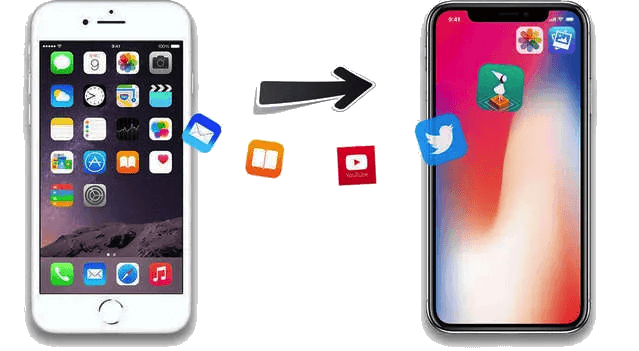
To begin the migration, open a modern web browser on your Mac, PC, iPad, or iPhone and navigate to Apple’s Purchase Transfer Request page at support.apple.com/en-us/117294. Click “Start your request” and sign in with your old Apple ID—the one that holds the purchases you want to move. You will immediately be prompted to enter your new Apple ID; provide the email address and password for that account. Both sign‑ins will require any two‑factor authentication codes you have set up, so keep your trusted devices or phone numbers nearby.
Once both accounts are authenticated, Apple will ask you to confirm which types of eligible purchases you wish to transfer (apps, music, movies, TV shows, and books). Review the list carefully and select everything you need. After you submit the form, Apple’s system will queue your request for review. You should receive an email acknowledgement within minutes and a follow‑up when the process completes—usually within a few days, depending on volume and verification requirements.
Meanwhile, back up any iCloud content—photos, documents, contacts, and so on—that does not transfer automatically. When you receive the final approval email, sign out of your old Apple ID on all your devices and sign in with your new Apple ID. Open the App Store, Apple Music, Apple TV, or Books apps, and simply re‑download your eligible purchases under your new account. If you encounter any hiccups, Apple Support may reach out for additional verification, but once approved, all selected purchases will be available in your new Apple ID’s purchase history.
Yes, you can perform the Apple ID purchase migration directly from an iPad or iPhone—as long as you use a modern web browser like Safari or Chrome. Apple’s Purchase Transfer Tool is web-based and works on both mobile and desktop devices.
To get started, simply open Safari on your iPhone or iPad and go to https://support.apple.com/en-us/117294. Tap “Start your request” and follow the prompts to sign in with your old Apple ID (the one holding your purchases). After authenticating, you’ll be asked to enter your new Apple ID credentials. Be sure you have access to both email accounts and phone numbers linked to these Apple IDs so you can complete two-factor authentication if required.
Once the request is submitted, you’ll receive updates by email. Even though the request can be made from a mobile device, keep in mind that content like iCloud files, app data, or game progress will not transfer, so it’s a good idea to manually back up those items separately before proceeding.
Several factors can prevent you from migrating your Apple Account purchases to another Apple ID. One of the primary issues is ineligible accounts. If either Apple ID is associated with a child under 13 (or under 16 in certain regions), the migration cannot proceed. Additionally, accounts created for business or organizational purposes are not eligible. If either account is currently enrolled in an Apple One subscription or part of a Family Sharing group, you’ll need to cancel or leave those programs before starting the transfer.
Account status also plays a major role. If either Apple ID has been locked, disabled, or suspended due to billing issues, security concerns, or violations of Apple’s policies, the migration will be blocked. Apple may also enforce a waiting period if there have been recent changes to the password, security settings, or two-factor authentication on either account.
Not all purchases are eligible to move. Subscriptions, in-app purchases, and certain content tied to third-party services cannot be transferred. Similarly, media or apps that are specific to a country’s App Store may not carry over if you’re transferring between accounts tied to different regions.
Verification problems can also halt the process. Both Apple IDs must have two-factor authentication enabled, and you need to successfully verify access to both accounts. If there are inconsistencies in personal information—such as name, email, or billing details—Apple may delay or deny the transfer until further verification is completed.
Lastly, technical or system issues can get in the way. Using outdated browsers or operating systems may interfere with the process. High server demand or backend issues on Apple’s side can also cause delays or prevent the migration from going through. Ensuring both accounts are current, verified, and compatible with the process is the best way to avoid roadblocks.