January 5, 2026

How do I prepare for the NFL Playoffs with my Mac, iPhone or iPad?

The tools you need to best utilize your Apple devices during the NFL Playoffs.

How do I prepare for the NFL Playoffs with my Mac, iPhone or iPad?

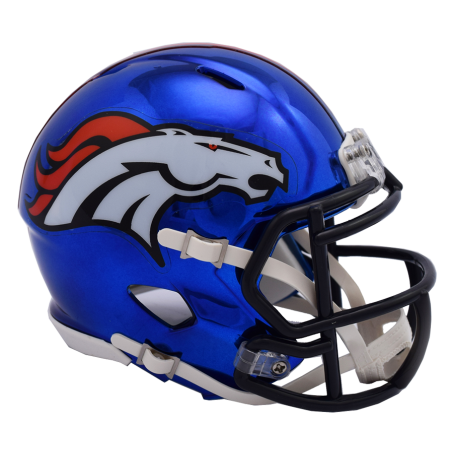
Congratulations to the Denver Broncos on earning a well-deserved spot in the NFL Playoffs. This achievement reflects the team’s hard work, resilience, and commitment throughout the season. We wish them luck in the postseason, Denver Mac Repair and Broncos Country will be cheering you on every step of the way.


TABLE OF CONTENTS

Table of Contents


How do I stream the NFL Playoffs on my Apple Device?

For the NFL Playoffs (2025–26 postseason, including Wild Card through Conference Championships and Super Bowl LIX), games will be available on a combination of traditional broadcast networks and major streaming services. Here are the primary options in the United States:

1. Major Streaming Services Carrying Playoff Games

  • Paramount+ – Streams games broadcast on CBS, including many Wild Card and Divisional playoff matchups. YouTube TV and other live TV bundles also include CBS feeds. 
  • Peacock – Streams games aired on NBC, including Sunday Night Football and select playoff games; sometimes has exclusive games on Peacock only. 
  • NFL+ – The NFL’s own streaming app lets you stream local and primetime postseason games on mobile devices. 
  • Amazon Prime Video – Per existing deals, one Wild Card playoff game is streamed on Prime Video (with a Prime subscription) – including exclusive streaming of certain Wild Card matchups. 

2. Live TV Streaming Services (carry broadcast networks)
These services include the live broadcast channels that air playoff games (CBS, FOX, NBC, ABC/ESPN), allowing you to stream all playoff broadcasts that are on those networks:

3. Network Apps

  • You can often stream through CBS Sports App, NBC Sports App, ESPN App/ABC App, FOX Sports App with authentication from a live TV or pay-TV provider. 

4. Special Cases

  • Super Bowl LIX (Feb. 9, 2025) will stream on Tubi, a free streaming service, in addition to FOX’s broadcast coverage. 

Summary
You’ll need access to Paramount+ and Peacock for network-simulcast streams, Amazon Prime Video for its exclusive Wild Card stream, and/or a live TV streaming bundle (YouTube TV, Hulu + Live TV, fuboTV, etc.) to cover all playoff games across networks in the U.S. option set. 

Broncos-Specific Situations

  • The Broncos finished atop the AFC West and hold a high seed heading into the playoffs, earning a first-round bye (which means they begin in the Divisional Round).
  • Specific dates, kickoff times, and networks for the Broncos’ postseason games will be announced after the NFL finalizes the playoff bracket on or shortly after January 5, 2026

I’m planning to attend an NFL Playoff game, what should I have on my iPhone?

  • s, and push notifications.
  • Ticketing App (Ticketmaster / SeatGeek / StubHub) – Your digital tickets must be downloaded in advance; screenshots are often not accepted.
  • Apple Wallet – Add tickets ahead of time for faster entry and offline access.
  • Maps (Apple Maps or Google Maps) – Traffic, parking locations, public transit, and post-game routing.
  • Rideshare App (Uber / Lyft) – Useful for designated pickup zones after the game.

Highly Recommended

  • Weather App – Playoff games often involve cold, wind, or snow; conditions can change rapidly.
  • Stadium App or Website Shortcut – Many stadiums publish bag policies, prohibited items, and gate changes day-of.
  • Mobile Banking / Apple Pay – Most NFL stadiums are cashless.
  • Camera App (default) – Ensure sufficient storage and battery for photos and video. Include a backup battery pack and cable.

Phone Settings to Prepare

  • Download tickets and maps offline (cell service is often congested).
  • Enable Face ID / Touch ID for quick ticket scanning and payments.
  • Turn on Low Power Mode before kickoff or bring a portable battery pack.
  • Silence non-essential notifications to avoid distractions during entry scans.

Optional but Useful


Here’s a guide to what you should have on your iPhone when attending a playoff game at Empower Field at Mile High (home of the Denver Broncos), plus tips specific to this stadium.

Essential iPhone Apps & Setup

1. Tickets & Entry

  • Ticketmaster / Broncos App – Ensure your mobile tickets are downloaded well before arrival.
  • Apple Wallet – Add your ticket here for fast, offline access at the gate.

2. Stadium Navigation

  • Apple Maps / Google Maps – For directions to the stadium, parking, or rideshare pickup/drop-off zones. 
  • RTD Mobile App (if using light rail) – Transit to/from Empower Field via the light rail station (“Empower Field at Mile High” station).

3. Game & Team Info

  • NFL App – Live scores, in-game alerts, and league info.
  • Denver Broncos Official App – Stadium services, parking info, seat maps, and push notifications.

4. Connectivity & Photos

  • Wi-Fi Access – Empower Field is upgrading stadium Wi-Fi, which should let you stay online with less congestion than in the past. 
  • Camera App – For photos/videos; make sure you have space and battery.

5. Payments

  • Apple Pay / Mobile Wallet – The stadium operates as a cashless facility, so mobile payments are essential for food, drinks, and merch.

Pre-Game & Game-Day Organization

Tickets & Documentation

  • Confirm your tickets are downloaded and added to Wallet with QR codes accessible even if connectivity is limited.
  • Screenshot your tickets as a backup.

Navigation & Timing

  • Download offline maps or directions if possible—cell service around stadium entry points can be congested.
  • Set reminders for arrival time, parking lot opening times (often several hours before kickoff), and gate time. 

Parking & Transport

  • If driving, use navigation apps (Waze, Maps) to find your specific lot and route.
  • If taking public transit, have your RTD pass ready in the transit app before arrival. 

Weather & Comfort

  • Denver weather can change quickly—check a weather app and download any offline forecasts.
  • Wear appropriate layers and prepare for altitude/weather changes.

On-Site Tips Specific to Empower Field

  • Clear Bag Policy – The stadium encourages travel light; only one clear bag (max 12″ x 6″ x 12″) or a one-gallon clear freezer bag is permitted. 
  • Cashless Purchasing – Most places inside the venue accept card or mobile (Apple) pay only. 
  • Connectivity – Look for “BroncosWifi” in your Wi-Fi settings to connect with network support for tickets and mobile use. 

Extras to Consider Downloading

  • Rideshare Apps (Uber / Lyft) – Essential for post-game pickup.
  • SeatGeek / SpotHero – If you reserved alternative parking or tickets separately.

What can I do to my Mac, iPad or AppleTV to make sure I have optimal streaming performance during the NFL Playoffs?

To ensure optimal streaming performance for NFL Playoff games across your Mac, iPad, and Apple TV, focus on four areas: software readiness, network quality, device configuration, and service-specific optimization. The steps below reflect best practices for high-reliability live sports streaming.

1. Network & Internet Optimization (Most Important)

Connection

  • Use wired Ethernet for Apple TV or Mac whenever possible (far more stable than Wi-Fi).
  • If on Wi-Fi, connect to 5 GHz or Wi-Fi 6 (avoid 2.4 GHz).
  • Position your router centrally and away from interference (microwaves, thick walls).

Bandwidth

  • Minimum recommended:
    • HD: 10 Mbps sustained
    • 4K HDR: 25–30 Mbps sustained
  • Pause or schedule large downloads, cloud backups, and software updates during games.

Router Settings

  • Enable QoS (Quality of Service) and prioritize:
    • Apple TV
    • Streaming traffic
  • Reboot your modem/router before kickoff (this often resolves latent performance issues).

2. Apple TV (Best Overall Streaming Experience)

System

  • Update to the latest tvOS at least a day before game time.
  • Restart Apple TV before kickoff.

Video Settings

  • Settings → Video and Audio:
    • Enable Match Content → Range & Frame Rate
    • Set output to 4K SDR (Apple TV will switch to HDR only when needed)
  • Disable unnecessary background apps.

Apps

  • Install and sign in ahead of time:
    • Paramount+
    • Peacock
    • Prime Video
    • ESPN / FOX Sports / NFL App
  • Launch each app once pre-game to confirm authentication works.

Network

  • Prefer Ethernet; if Wi-Fi:
    • Forget weaker networks and lock into the strongest one.

3. iPad (Great for Mobility or Secondary Screens)

System

  • Update to the latest iPadOS.
  • Restart the device pre-game.

Settings

  • Turn Low Power Mode OFF (can reduce streaming quality).
  • Disable VPNs (often cause buffering or geo-blocking).
  • Close background apps.

Display

  • Use Picture-in-Picture carefully—some services reduce bitrate when active.
  • If casting or AirPlaying, ensure both devices are on the same network.

Downloads

  • Do not download offline content during live games.

4. Mac (Best for Multitasking or Office Viewing)

Browser

  • Use Safari for best Apple hardware video decoding.
  • Chrome is acceptable but more CPU-intensive.

System

  • Update macOS ahead of time.
  • Restart before the game.
  • Close:
    • Cloud sync apps
    • Backup utilities
    • Video conferencing tools

Display & Audio

  • Avoid external displays if your Mac struggles with high CPU usage.
  • Disable screen recording software.

Network

  • Ethernet preferred.
  • If Wi-Fi, manually select the strongest access point.

5. Service-Specific Best Practices

Before Game Day

  • Log into every streaming service at least once.
  • Verify:
    • Subscription tier supports live sports
    • Location permissions are enabled
  • Sign out/in if an app has had prior playback issues.

During the Game

  • Avoid switching streams repeatedly (forces renegotiation of bitrate).
  • If buffering occurs:
    1. Pause 10–15 seconds
    2. Resume
    3. If needed, restart the app—not the device first
  • Have at least two streaming apps available for the same game if possible.
  • Keep a mobile hotspot ready as a backup connection.
  • Know which service carries each network:
    • CBS → Paramount+
    • NBC → Peacock
    • FOX → FOX Sports App / live TV service
    • ESPN/ABC → ESPN App
    • Amazon exclusive → Prime Video

What companion apps are best to have on my Mac, iPhone or iPad for the NFL Playoffs?

Here is a curated list of the best companion apps to install on your Mac, iPhone, and iPad for the NFL Playoffs. These apps will keep you organized, informed, and prepared before, during, and after each game.

1. Live Game Viewing & Network Apps

These are essential for streaming or accessing playoff broadcasts and scores.

On iPhone & iPad (and Mac where available):

  • NFL App
    Official league app for live scores, highlights, news, stats, and alerts.
  • Paramount+
    Streams CBS playoff games (AFC network) and related content.
  • Peacock
    Streams NBC playoff games and additional NFL coverage.
  • Amazon Prime Video
    Streams select exclusive Wild Card games.
  • ESPN App
    Streams ABC/ESPN playoff games with authentication.
  • FOX Sports App
    Streams FOX playoff broadcasts with authentication.

Mac Specific Notes

  • Some streaming platforms (Paramount+, Peacock) offer native macOS apps or work through Safari/Chrome with reliable performance.
  • Safari is generally preferred for efficiency.

2. Team & League Companion Apps

These apps enhance the fan experience with tailored content.

For Broncos Fans

  • Denver Broncos Official App
    Team news, schedules, ticket management, push alerts, and fan content.
  • NFL+
    League subscription for mobile live streaming and on-demand replays (great on iPad/iPhone).

3. Fan Community & Discussion

Stay social and plugged into fan sentiment.

4. Utilities for Game Day

Improve logistics, weather awareness, and planning.

  • Apple Maps / Google Maps
    Real-time navigation and traffic during arrival/departure.
  • ParkWhiz / SpotHero
    Reserve or locate parking near Empower Field at Mile High.

Weather & Alerts

  • Weather Apps

Team & League Organization

  • Calendar
    Sync NFL playoff dates and times directly to your calendar with alerts.
  • Reminders / Notes
    Track game plans, parking info, seat numbers, travel times.

Communication

5. Social & Engagement

Enhance the fun around playoff football.

  • YouTube
    Highlights, press conferences, analysis during and after games.
  • Bleacher Report
    Personalized news feeds and push alerts for Broncos/NFL developments.

6. Optional Analytics & Advanced Tools

For deeper insight or advanced tracking.

7. Apple Devices — Device-Specific Uses

iPhone / iPad

  • NFL, team, and streaming apps for mobility.
  • Widgets on Home Screen for real-time scores.

Mac

  • Browser streaming for larger screen.
  • Secondary workspace for stats, multiple tabs, or group chats.

Quick Installation Checklist

Install these on all devices for the best playoff experience:

Streaming / Live

  • Paramount+
  • Peacock
  • Prime Video
  • ESPN
  • FOX Sports

Team & League

  • NFL App
  • Denver Broncos App
  • NFL+

Utility

  • Maps
  • Weather
  • Calendar
  • ParkWhiz / SpotHero

Social / News

  • Twitter (X)
  • Reddit App
  • YouTube
  • Bleacher Report

I don’t have an TV, how can I stream from my iPad, iPhone or Mac to my TV?

1. Use AirPlay (If Your TV Supports It) — Best Wireless Option

Many modern smart TVs support AirPlay 2 natively.

Compatible brands commonly include:

  • Samsung (2019+)
  • LG (2019+)
  • Sony (Android/Google TV models)
  • Vizio

How to use it

  1. Ensure your iPhone/iPad/Mac and TV are on the same Wi-Fi network.
  2. Start the stream in the app (Paramount+, Peacock, Prime Video, ESPN, FOX Sports).
  3. Tap AirPlay and select your TV.
  4. Switch to Full Screen playback.

Best practices

  • Start playback on the device first, then enable AirPlay.
  • Keep the device unlocked during the first 10–15 seconds.
  • Disable VPNs (they commonly break AirPlay DRM).

Limitations

  • Some apps restrict AirPlay resolution.
  • Slight latency compared to direct TV apps.

2. HDMI Adapter (Lightning or USB-C) — Most Reliable Option

This is the most stable and highest-quality method.

What you need

  • iPhone with Lightning → Apple Lightning Digital AV Adapter
  • iPhone/iPad with USB-C → USB-C Digital AV Multiport Adapter
  • Mac → HDMI cable (or USB-C → HDMI adapter)

How to use it

  1. Connect adapter to your device.
  2. Connect HDMI cable from adapter to TV.
  3. Select the correct HDMI input.
  4. Start the stream.

Advantages

  • No Wi-Fi dependence after stream starts.
  • Full resolution (up to 1080p / 4K depending on device).
  • Works with all major NFL streaming apps.

Recommendation

  • Avoid third-party adapters for live sports; many fail DRM checks.

3. Use Built-In TV Streaming Apps (Device as Controller)

If your TV has apps like Paramount+, Peacock, Prime Video, ESPN, FOX Sports:

How it works

  1. Install the app directly on the TV.
  2. Sign in using your phone (QR code or app-based login).
  3. Use your phone or iPad as the remote/controller.

Why this is ideal

  • Best video quality and lowest latency.
  • No AirPlay or casting restrictions.
  • Most reliable during high-traffic playoff games.

4. Browser Streaming from a Mac (HDMI or AirPlay)

HDMI from Mac

  • Connect Mac → HDMI → TV.
  • Use Safari for best performance.
  • Set TV as the main display or mirror.

AirPlay from Mac

  • Control Center → Screen Mirroring → Select TV.
  • Start stream in Safari.

Tips

  • Close CPU-intensive apps.
  • Disable screen recording or external capture software.

5. Chromecast (If Your TV Supports It)

Some NFL apps support Google Cast.

How to use

  1. Open the app on iPhone/iPad.
  2. Tap the Cast icon.
  3. Select your TV or Chromecast device.

Note

  • iOS Chromecast support is app-dependent.
  • Less consistent than HDMI or AirPlay for live sports.
  1. Native TV App (best overall)
  2. HDMI adapter from iPhone/iPad/Mac
  3. AirPlay to TV
  4. Mac browser → HDMI
  5. Chromecast (if supported)

What we Recommend You Do Before Game Day

  • Test your chosen method at least one day early.
  • Confirm audio sync and resolution.
  • Keep an HDMI adapter as backup, even if using AirPlay.

How do I share in the NFL Playoffs with remote friends and family (Even if they are Raiders fans)?

You can stay closely connected with remote friends and family during the NFL Playoffs on your Apple devices without compromising stream quality or violating app restrictions. Below are practical, Apple-native ways to share the experience—banter included, even with Raiders fans.

1. FaceTime + Live Stream (Second-Screen Approach — Best Overall)

Recommended method

  • Watch the game on your TV or iPad
  • Use FaceTime on your iPhone or Mac for live conversation

Why this works

  • Avoids DRM restrictions (most NFL apps block screen sharing)
  • No risk of stream interruption
  • Best audio/video quality for everyone

Tips

  • Use AirPods to prevent echo.
  • Mute TV speakers slightly so FaceTime audio stays clear.
  • Create a FaceTime link and reuse it for each playoff game.

2. FaceTime SharePlay (Limited but Useful)

What it supports

  • SharePlay works with some apps (Apple TV+, ESPN content in limited cases)
  • Most live NFL broadcasts do NOT support SharePlay

When to try it

  • Pre-game shows
  • Post-game analysis
  • Highlights or replays

How

  1. Start FaceTime
  2. Open a supported app
  3. Tap SharePlay

Caution

  • All participants must have access to the same content.
  • Live playoff games usually fall back to individual streams.

3. Group Messaging (Real-Time Commentary)

Best apps

  • iMessage – Native, reliable, and instant
  • WhatsApp / Signal – If mixing platforms
  • Slack / Discord – Best for large or recurring groups

Enhancements

  • Pin the group chat for game days.
  • Use message reactions for quick commentary.
  • Share screenshots, stats, or memes between plays.

4. Live Reactions & Social Layers

Optional but fun

  • X (Twitter) – Real-time reactions, highlights, and officiating debates
  • Reddit – r/nfl and r/denverbroncos game threads
  • YouTube – Live post-game analysis and press conferences

Use these sparingly during live play to avoid spoilers or stream delay issues.

5. Syncing Kickoff Times (Reduce Spoilers)

Streaming delays can vary by 15–60 seconds.

Best practices

  • Agree on a “spoiler-free rule” until everyone confirms the play.
  • Delay chat reactions by ~10 seconds.
  • Use “mute notifications” briefly during critical plays if needed.

6. Apple-Specific Quality-of-Life Tips

  • Use Focus Mode (e.g., “Game Day”) to silence non-essential alerts.
  • Add games to Calendar with alerts for kickoff.
  • Use Picture-in-Picture on iPad for stats while FaceTiming.
  • Keep Low Power Mode off during live streams.
  • TV / iPad: Main game stream
  • iPhone: FaceTime + group chat
  • Mac (optional): Stats, chat, or social feeds

This setup mirrors how broadcasters and analysts follow live sports and minimizes technical risk.

Additional Tips:

Part 1: FaceTime + Focus Mode Workflow (Game-Day Ready)

A. One-Time Setup (Do This Once)

1. Create a Dedicated “Game Day” Focus Mode

On iPhone or iPad:

  1. Settings → Focus → + → Custom
  2. Name it Game Day
  3. Choose a neutral icon/color (avoid team logos to keep peace)

Allowed Notifications

  • People:
    • Add FaceTime participants
    • Add your group chat(s)
  • Apps:
    • FaceTime
    • Messages
    • NFL App
    • Team App (Broncos)
    • Streaming apps (Paramount+, Peacock, etc.)

Silence

  • Social media apps (X, Reddit)
  • Work apps
  • News apps (spoilers)

Options

  • Enable Time Sensitive Notifications
  • Enable Share Focus Status (optional)
  1. Open FaceTime
  2. Tap Create Link
  3. Name it something neutral like:
    • “Playoff Watch”
    • “Sunday Football”
  4. Pin or save the link in:
    • Notes
    • Messages (pinned)
    • Calendar event

This avoids scrambling before kickoff.

3. Prepare Devices by Role

Best practice

  • TV / iPad: Main game stream
  • iPhone: FaceTime + Messages
  • Mac (optional): Stats, injury reports, replays

Use AirPods or headphones for FaceTime to prevent echo.

B. Game-Day Workflow (Repeat Every Game)

30–45 Minutes Before Kickoff

  • Enable Game Day Focus
  • Start the FaceTime call early (pre-game chatter)
  • Confirm everyone’s stream is live
  • Establish the spoiler delay (see rules below)

At Kickoff

  • Keep FaceTime audio active
  • Mute TV slightly if needed
  • Lock into one stream—avoid switching apps

During the Game

  • Use Messages for banter
  • Use FaceTime for reactions
  • Avoid screen sharing (most NFL apps block it)

Halftime

  • Bathroom/snack break
  • Sync delays again if needed
  • Reconfirm spoiler rules

Part 2: Banter-Safe Messaging Rules (Mixed-Fan Households)

These rules preserve fun without causing technical or emotional meltdowns.

Rule 1: The Spoiler Buffer

Standard rule:

No reacting to a play until 10–15 seconds after it happens on your screen.

If someone is clearly behind:

  • Use “⏳” to signal “I’m delayed”
  • Everyone pauses reactions briefly

Rule 2: Channel Separation

  • FaceTime:
    • Emotional reactions
    • Laughing, yelling, groaning
  • Messages:
    • Trash talk
    • Memes
    • Stats screenshots

This prevents audio chaos.

Rule 3: No Screenshot Spikes

  • No posting screenshots before the play is visible to everyone.
  • Replays and stills are fair game after the whistle.

Rule 4: Officials Are a Neutral Zone

Allowed:

  • “That call was brutal”
  • “Refs gonna ref”

Not allowed:

  • Personal attacks
  • Caps-lock rants longer than one message

This keeps the group chat from imploding.

Rule 5: Scoring Etiquette

After touchdowns or turnovers:

  1. Scoring fan gets one message
  2. Other fans get one response
  3. Then reset

This keeps banter sharp, not spammy.

Rule 6: End-of-Game Cooldown

  • Winning fans: Celebrate, don’t gloat
  • Losing fans: Allowed silence without commentary
  • No post-game taunts until final whistle + 10 minutes

Mandatory exception:
Division rivals (Raiders included) may be gently mocked after the cooldown.

  • Pinned Message in the group chat with the rules
  • Focus Filter that hides social apps entirely during Game Day
  • Shared Notes doc for inside jokes, bets, or predictions

What is the Postseason Schedule?

2025–26 NFL Playoffs Postseason ScheduleWild Card Round

Friday, January 10 – Monday, January 12, 2026The NFL Wild Card Weekend begins Saturday, January 10, 2026, and runs through Monday, January 12. Multiple games are scheduled across those three days, with kickoff times typically in the afternoon and evening (ET). Exact matchups and times will be officially announced once the playoff bracket is set after the regular season ends on January 4. 

Divisional Round

Saturday, January 17 – Sunday, January 18, 2026Winners from the Wild Card Round advance to the Divisional Round. Games are scheduled on both January 17 and January 18, with times and locations depending on seeding. 

Conference Championships

Sunday, January 25, 2026AFC Championship Game — typically mid-afternoon (ET)NFC Championship Game — typically early evening (ET)Exact times and home teams will depend on playoff outcomes.

Super Bowl LX

Sunday, February 8, 2026 — 6:30 p.m. ET Super Bowl LX at Levi’s Stadium in Santa Clara, CaliforniaChampionship game featuring the AFC Champion vs. NFC Champion, broadcast on NBC and streaming via Peacock (plus other options).

Summary of Key Dates
StageDates
Wild Card RoundJan 10–12, 2026
Divisional RoundJan 17–18, 2026
Conference ChampionshipsJan 25, 2026
Super Bowl LXFeb 8, 2026 — 6:30 p.m. ET

⭐️⭐️ UPDATE January 6th, 2026 ⭐️⭐️

The NFL postseason includes 14 teams (7 from each conference). The top seed in each conference gets a first-round bye.

Top seeds with byes:

  • AFC #1: Denver Broncos
  • NFC #1: Seattle Seahawks

Wildcard Round Matchups (Jan 10–12, 2026):

  • Rams @ Panthers (NFC)
  • Packers @ Bears (NFC)
  • Bills @ Jaguars (AFC)
  • 49ers @ Eagles (NFC)
  • Chargers @ Patriots (AFC)
  • Texans @ Steelers (AFC)

These matchups are based on final standings following Week 18 of the regular season.


Playoff Schedule

All times below are Mountain Time (MT).

Wild Card Round

Saturday, January 10, 2026

  • 2:30 PM MT: Rams @ Panthers — FOX (local + national) / FuboTV streaming
  • 6:00 PM MT: Packers @ Bears — Amazon Prime Video (exclusive streaming)

Sunday, January 11, 2026

  • 11:00 AM MT: Bills @ Jaguars — CBS / Paramount+
  • 2:30 PM MT: 49ers @ Eagles — FOX / FuboTV
  • 6:00 PM MT: Chargers @ Patriots — NBC / Peacock 

Monday, January 12, 2026

  • 6:00 PM MT: Texans @ Steelers — ESPN/ABC / ESPN+ 

Divisional Round

Saturday & Sunday, January 17–18, 2026

  • Four games across both days; matchups depend on Wild Card winners. Broadcasts rotate among CBS, FOX, NBC, ESPN/ABC. Streaming via corresponding services (Paramount+, Peacock, ESPN+). 

Conference Championships

Sunday, January 25, 2026

  • AFC Championship (1:00 PM MT) — CBS / Paramount+
  • NFC Championship (4:30 PM MT) — FOX / FuboTV 

Super Bowl LX

  • Sunday, February 8, 2026 at 4:30 PM MT
  • Location: Levi’s Stadium, Santa Clara, CA
  • TV: NBC
  • Streaming: Peacock 

Our Reviews

Come Visit Us
Choose a location below.
View in Google Maps